![200x60.png]](https://learn.autoflow.tech/hs-fs/hubfs/200x60.png?height=38&name=200x60.png)
Glossary
- Data Capture: The process of adding data into your AutoFlow system, consists of Employee Administration, Suppliers, Customer Maintenance, Work Providers, Courtesy Cars, Workshop Categories and costing Codes.
- Employee Administration: conveniently store and manage all the details of your employees in one centralized location. This includes both productive and non-productive team members. By having all employee information in one place, AutoFlow serves as the central hub for your business operations.
-
Suppliers: All of the suppliers you work with for items ordered from an estimate need to be entered into the system.
- Customer Maintenance: The database for all the customers who utilise your services, excluding policyholders and private/retail jobs.
- Work Providers: Work Providers are individuals or organizations that direct work to your bodyshop.
- Courtesy Cars: All the courtesy and hire cars you have available to your bodyshop.
- Workshop Catagories: Default categories that can be customised to shape your processes.
- Costing Codes: Default codes that can be customised to align with your invoicing process.
Accessing the Portal
- Click here to open up our Data Collection portal.
- Enter the credentials that have been provided to you.
- Click the DataCollection Icon.
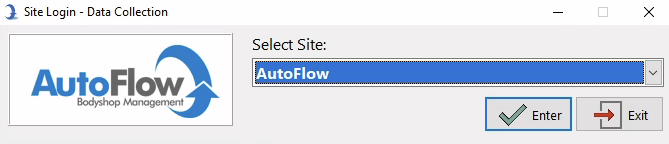
- Select the site where you would like to add the data and click Enter.
Inputting the Data
You don't need to input all this information in one go!
Take your time throughout the working week to complete it, but ensure it's done as soon as possible so we can allocate you an installation date. We suggest assigning these tasks to the relevant team members to distribute the workload evenly.
To begin a new record within any of the collection tabs, click on the Create button. This action will redirect you to a new window where you can input the necessary information. Once you have finished entering the data, it is important to remember to click the Save button located at the bottom right of the window. This will ensure that your changes are saved and recorded in the system.
Don't forget to fill in all the fields that are in red, because, well, they're mandatory!
The AutoFlow system allows you the flexibility to go back and edit any records that may require changes. If you happen to make a mistake or need to update any information, access the respective tab and locate the record you wish to modify. By clicking on the record, you will be presented with the option to edit and update the data as needed.
Please note: that Workshop Categories and Costing Codes cannot be created or deleted. These settings are pre-set within the AutoFlow system. However, you will have the ability to modify them according to your internal processes.
Employee Administration
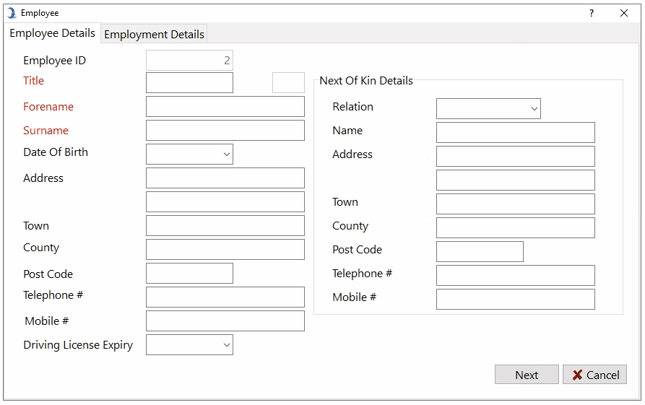
Please make sure to add all of your employees to this section, regardless of whether they are part of your productive or non-productive teams. AutoFlow serves as the central hub for your business, so it's important to have all the employee information in one place.
When creating employees in the system, each individual will be assigned a unique ID number. This ID number is used throughout the system to assist with auditing and identifying users in different modules.
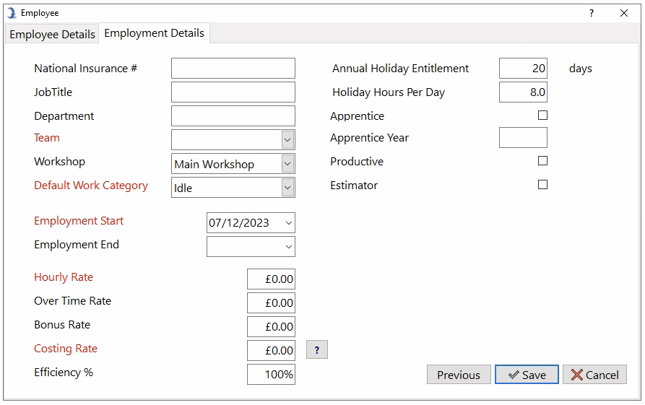
Curious about the Costing Rate formula? Click on the '?' to unlock the secrets behind it!
Suppliers
All of the suppliers you work with for items ordered from an estimate need to be entered into the system. When adding this information, you will be required to input a Supplier Code, which is a unique ID for that supplier.
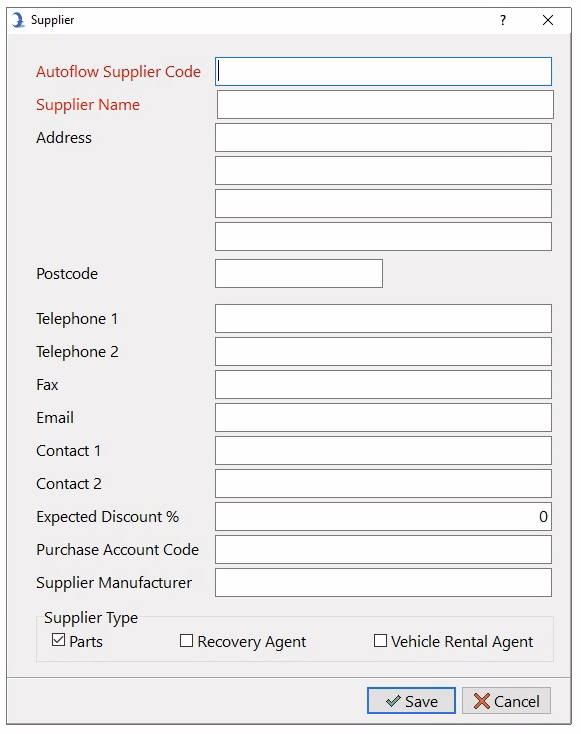
- Expected Discount: the average discount provided by the supplier.
- Purchase Account Code: the purchase ledger account number from your accounts package.
- Supplier Type: what supplies does this business offer to you?
Customer Maintenance
This section will serve as the database for all the customers who utilise your services, excluding policyholders and private/retail jobs. It is vital to record this information in the system as these customers will also be included in your account package. The Customer Code is used as a unique identifier for customers within the database.
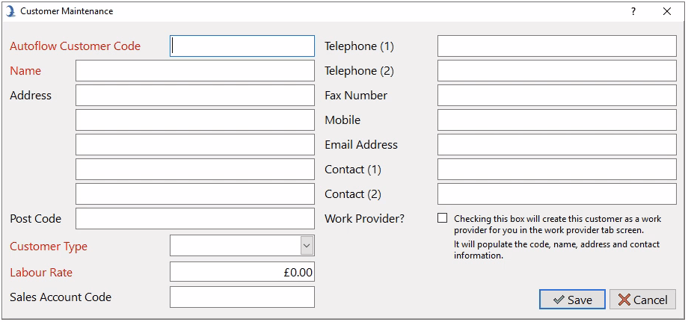
Here's a clever little trick for you! If you happen to have two types of customers with the same address, no need to worry! Click on the Copy button and presto! You can effortlessly duplicate an existing customer's details.
Work Providers
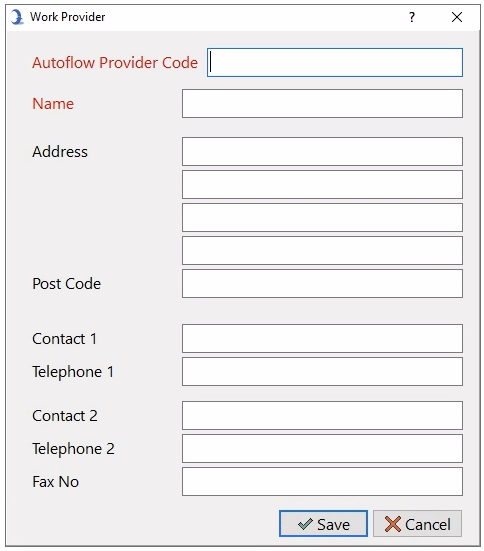
All of your Work Providers should be listed here. Work Providers are individuals or organizations that direct work to your bodyshop. While there may be some overlap with Customer Maintenance, such as Accident Managers, who do not fall under the Customer Maintenance category.
We strongly recommend setting up a Work Provider for private work that has not been referred by a third party. This Work Provider should be set up as your bodyshop.
Courtesy Cars
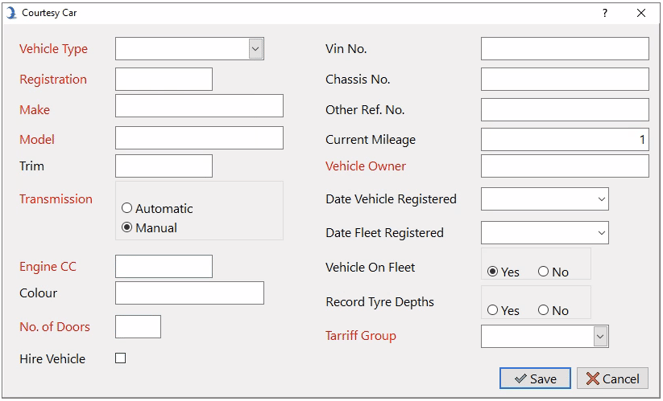
Enter all of the courtesy cars and hire vehicles you have available to you.
Workshop Categories
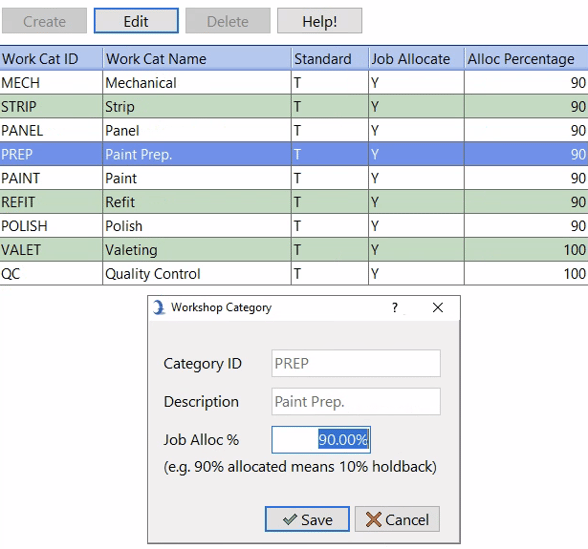
AutoFlow offers a variety of default Workshop Categories that can be easily personalised to suit your business's unique needs. You have the freedom to either make use of the pre-set categories in the system or customise them accordingly.
- CatID: Unique identifier in the system.
- Description: A description of the category.
- Job Alloc % / Hold Backs: The percentage of the estimated time that is given to the job. For example, if a job has 10 hours on paint and the Job Alloc was set to 90%, the system would send 9 hours to the workshop and 1 hour would be allocated as a hold back.
Costing Codes
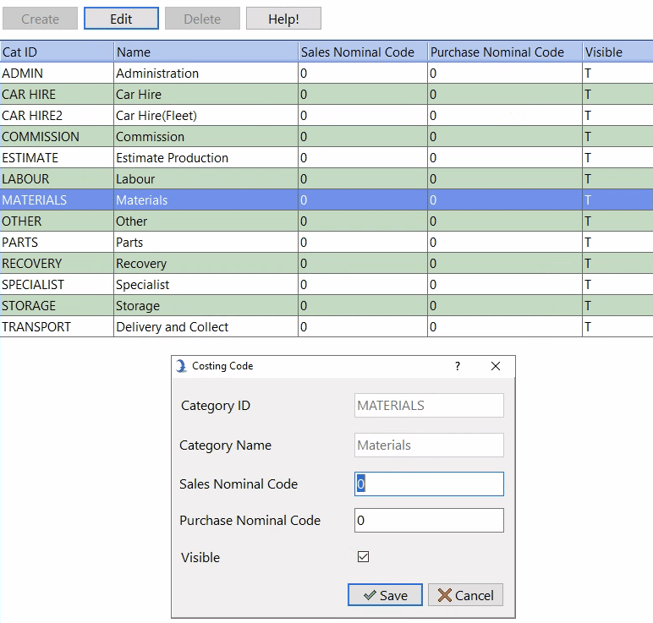
The Costing Code tab provides a default set of codes that can be customised to suit your processes. You will be required to enter the account nominal code for sales and purchases. If this is not applicable, simply leave it blank.
If you're in need of more codes, just give our team a shout and we'll gladly add them to your system!
- CatID: Unique identifier in the system.
- Description: A description of the category.
- Sales Nominal Code: This code will match with the respective one in your accounts package.
- Purchase Nominal Code: This code will match with the respective one in your accounts package.
Once you have finished this process, please inform our team, and we will schedule your installation along with our training. We appreciate the time you have taken to capture this information, as it is crucial for the next stages of your AutoFlow journey. We are thrilled to begin working with you!