![200x60.png]](https://learn.autoflow.tech/hs-fs/hubfs/200x60.png?height=38&name=200x60.png)
All communications with any parties relating to the job should be logged on the job. This is done through the Comms module. Depending on your Work Providers and the contracts held with them, they may have access to some of the modules in AutoFlow. One of these modules is the Comms module where they're able to see the communication you've held with the customer.
It's important that the information recorded in here is clear and easy to understand so if anyone needs to look at it they understand the full communication log with the customer.
Locating the Comms Module
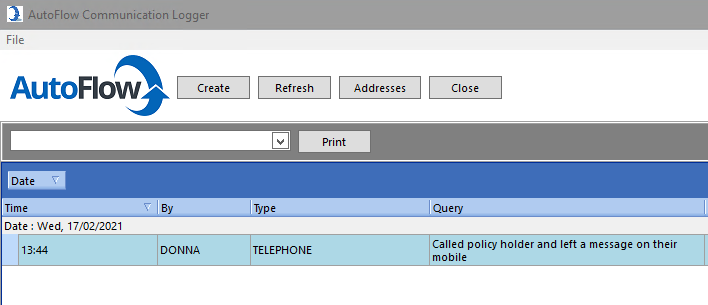
This can be found on the main grid, this is located in the top right-hand corner of the application.


Creating a Comm
Once the module opens, click the "Create" button.
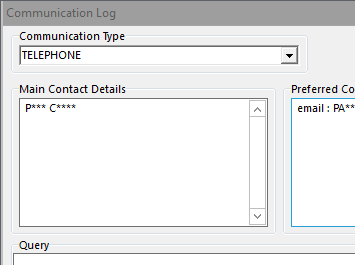
Selecting the Communication Type
Using the drop-down, select the most appropriate communication type for the interaction you're logging. Briefly describe what was discussed or communicated in the query box.
Sending an SMS or Email
Within the message box, you can free-type or paste your message. Alternatively, you can right-click and select a saved message from your templates.

Save/Send the Communication
Click "Save" to record the communication or if you want to use the SMS/Email function, click "Send". It's important to record as much information as possible when communicating with all parties as it creates transparency for all involved.
Handling Answer Phones & Absences
In the unfortunate instance that the customer is not available, you can set yourself a reminder to contact the customer at a later date.
If you're not available to follow up with the customer then you can set a reminder to a colleague. This is done by changing the Send To dropdown.

Sending Copies via AutoFlow Mail
If necessary, you can send a copy of the communication as mail to your colleague. This is located on the right-hand side of the screen.
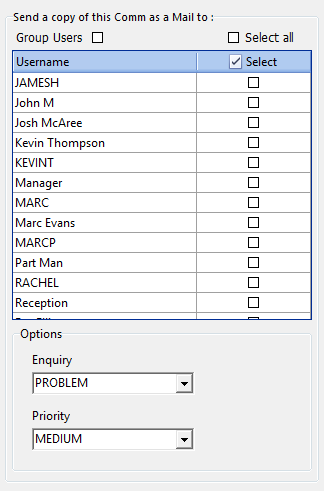
The mail type can be changed to "To Do", this is done within the Enquiry drop-down. Finally, select "Save" to finalise the communication.
Email & SMS templates will save you time and improve accuracy within your system. Click here for more information on how to set these up!