![200x60.png]](https://learn.autoflow.tech/hs-fs/hubfs/200x60.png?height=38&name=200x60.png)
Accessing the Financial Budget settings page
By default, there are no financial budgets assigned to your bodyshop. However, you can easily manage your bodyshop's Financial Budget through the Parameters feature, as long as you have the necessary access.
- Navigate to AutoFlow Parameters
- Select Budgets (in the General section)
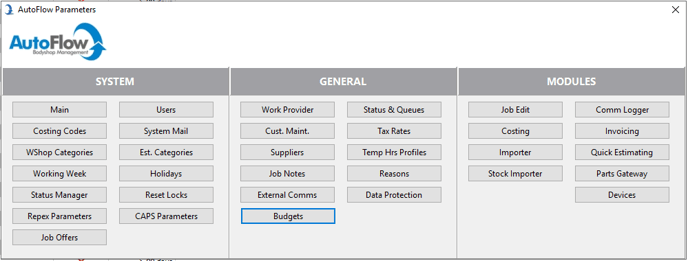
This will open the 'Financial Budget' screen where you can add, remove and update monthly financial targets.
Adding a New Record
To create a new monthly record, select the  icon in the bottom left of the screen Financial Budget screen.
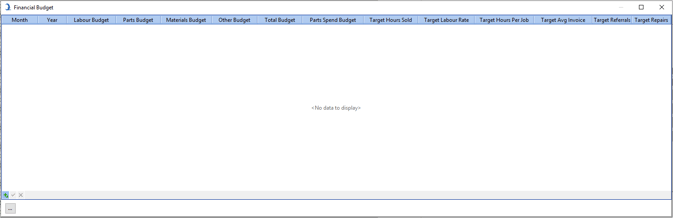
A new line will appear where you can manually input the budget data for the select month and year.
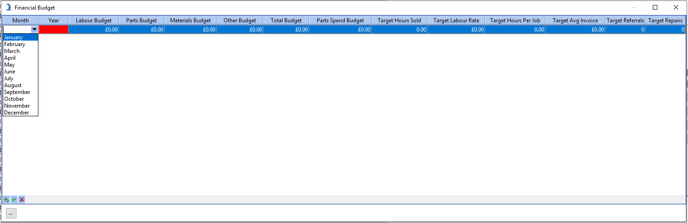
Add Multiple Records at once
To add multiple monthly budgets at once:
- Select the
 icon in the bottom left of the Financial Budget Screen. A new box will appear.
 - Complete the form per your requirements
- Select "Save"
Please keep in mind that you cannot create a new record for a month/year that already exists in the system.
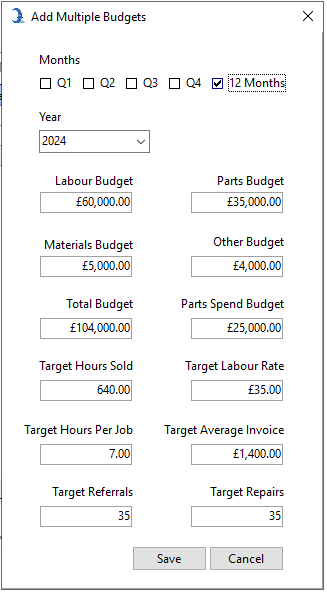
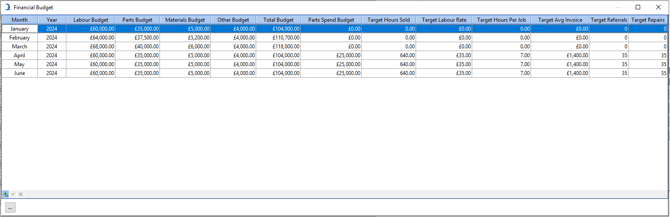
After ensuring that the information is accurate, you can simply close the box. This will allow you to view your performance compared to the budget in the Analytics module and in any reports that analyse performance.
Updating an existing record
To update a record, simply select the field that needs to be updated and replace the existing data with the new information. This allows you to keep your financial budget records accurate and up to date..
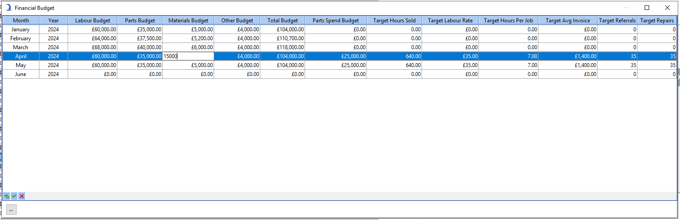
Please note: You cannot remove a record once it has been created. If you want to delete the record, simply replace the target values with
To monitor your performance compared to the budgets you have just set, you can explore the new Analytics module. You can learn how to access this here. This module offers a user-friendly and insightful way to track and analyse your financial performance.