![200x60.png]](https://learn.autoflow.tech/hs-fs/hubfs/200x60.png?height=38&name=200x60.png)
Importing from BDQ
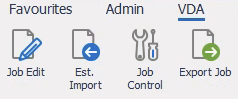
To begin, navigate to the Est. Import module, this can be located under the VDA heading. Select Est. Import which will bring up all the platforms you can import from.
You will then be presented with the Estimate Import module, from here, select BDQ as the import platform.
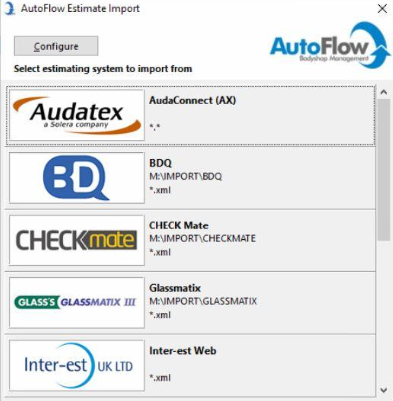
Can't see BDQ? Please ensure that you have the correct permission from your Admin User. If you still can't view it, please reach out to our support team who will be happy to help, you can do that here.
Now the XML export from BDQ needs to be imported, select Browse for file in the bottom left of the module. This next step will differ depending on if you are using our Hosted Platform or on your own server.
Hosted AutoFlow
The files will be located in a folder on the hosted setup, this will be on the C Drive. Typically they will fall under the following address: C:\AUTOFLOW\BDQ. If you're unable to locate this file then you may need to set one up. Please contact our support team if you need any assistance during this process, click here to get in touch.
On-Premise AutoFlow
Navigate to your downloads folder, this will show the recent BDQ export.
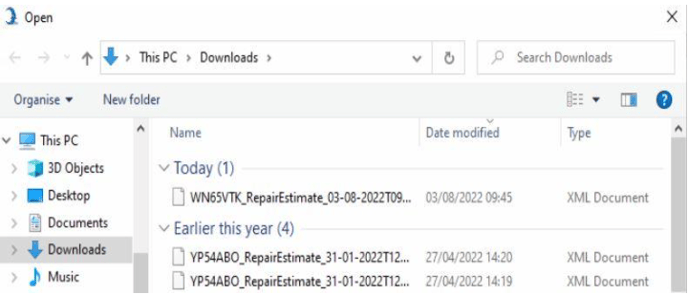
Feel free to pin the downloads folder to the file explorer or set up a shortcut for the downloads folder on the desktop to speed up the import process.
Import Content
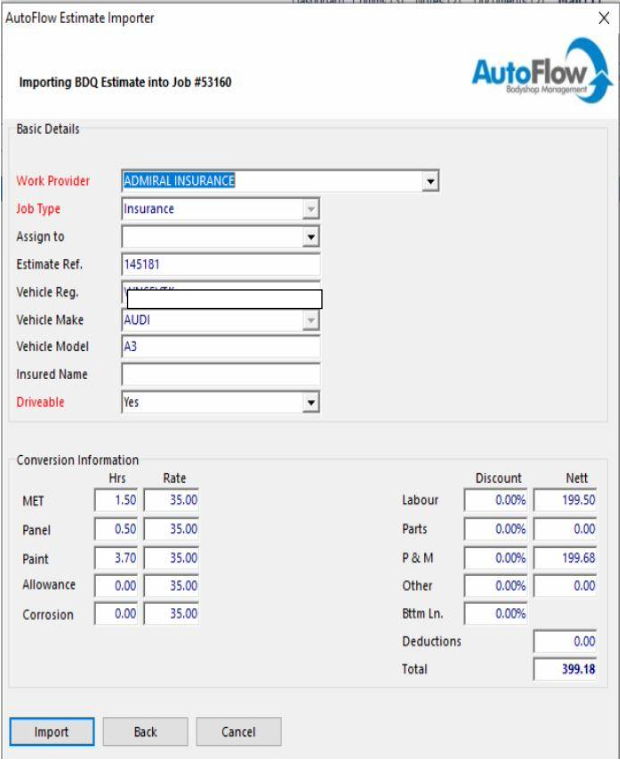
Once the file has been successfully imported, you will be prompted to select the content you would like to import.
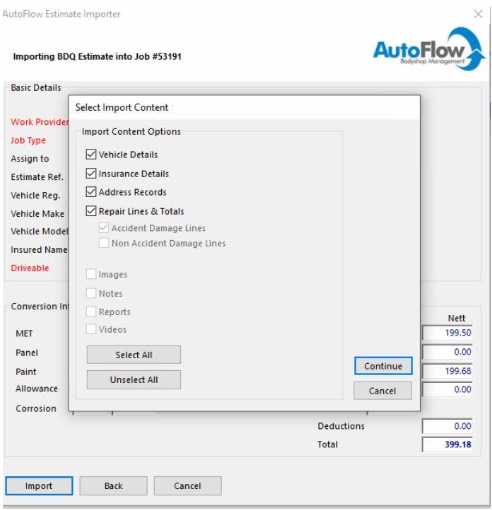
Finally, we recommend checking the estimate totals match your authority, if this is the case then you can select Import. This estimate can now be found within AutoFlow!